· Microsoft 365 · 12 min read
Copilot APIs for M365 Developers: 02 - Deep Dive into the Chat API + Smart Context Sample
Part 2 of my series on Microsoft 365 Copilot APIs. A deep dive into the Chat API with a real-world SPFx sample called Smart Context that shows how to build AI-powered insights on SharePoint pages.
Hi everyone!
Welcome back to my series on Microsoft 365 Copilot APIs! In the first post, I gave you an overview of all the available APIs. Today, as promised, we’re going deep on the one that excites me the most: the Chat API.
What is the Chat API?
The Microsoft 365 Copilot Chat API allows you to programmatically engage in multi-turn conversations with Microsoft 365 Copilot while using enterprise search grounding and web search grounding. This means you can integrate the same powerful conversational AI capabilities that power Microsoft 365 Copilot directly into your custom applications.
⚠️ Important Note: At the time of writing, the Chat API is in Preview status. This means it’s available under the
/betaendpoint and is subject to change. Use of these APIs in production applications is not supported. Always check the official documentation for the most current status.
Why Use the Chat API?
With Declarative Agents and Copilot Studio, Microsoft already provides powerful ways to extend Copilot without writing much code. So why would you want to use the Chat API directly?
The answer is control and integration, but one doesn’t exclude the other. Declarative Agents are great for building standalone experiences within the Copilot ecosystem. The Chat API, on the other hand, lets you embed Copilot’s conversational capabilities directly into your custom applications, with full control over both the user experience and the architecture.
The potential here is practically limitless. Where do I see these APIs shine? In third-party applications that leverage Microsoft Graph’s modern authentication, and of course in SPFx solutions where you can bring AI-powered features directly into SharePoint pages, web parts, and application customizers.
Here’s why I think it’s valuable:
🏗️ You’re Not Building a RAG Pipeline from Scratch
The traditional approach to building an AI assistant grounded on enterprise data requires you to:
- Extract content from M365 (and keep it in sync)
- Generate embeddings and store them in a vector database
- Build retrieval logic that respects user permissions
- Orchestrate the whole flow with something like Semantic Kernel or LangChain
With the Chat API, Microsoft has already done all of this. The semantic index that powers Microsoft 365 Copilot is available to your applications. You send a prompt, you get an answer grounded on the user’s accessible content. Done.
🔒 Permissions Are Not Your Problem
This is the part that gets me excited. In custom RAG solutions, permission trimming is a nightmare. You need to ensure that when User A asks a question, they don’t get results from documents they shouldn’t access. With the Chat API, the existing permission model handles this automatically. The API respects sensitivity labels, sharing settings, and all the compliance controls your organization has configured.
💰 The License You Already Have
Here’s the business case: if your users have Microsoft 365 Copilot licenses, the Chat API is included. You’re not paying extra for Azure OpenAI tokens, you’re not provisioning additional infrastructure, you’re not managing separate billing. You’re leveraging capabilities that are already part of the license cost.
Of course, this also means the API is only available to licensed Copilot users, which is a consideration for some scenarios.
⚖️ When This Makes Sense (and When It Doesn’t)
I want to be realistic here. The Chat API is not a silver bullet. If your scenario requires:
- Grounding on data outside Microsoft 365 (external databases, custom APIs)
- Fine-grained control over the model (temperature, system prompts, specific model versions)
- Complex multi-step agent workflows with tool calling
…you’ll still need a custom solution, possibly combining Azure OpenAI with the Retrieval API or building a full agent with the Microsoft Agents SDK.
But for scenarios where the knowledge lives in SharePoint, OneDrive, Exchange, and Teams? This is incredibly powerful. And let’s face it, for most enterprise M365 customers, that’s exactly where the critical business information resides.
Chat API Capabilities
The Chat API can use the following capabilities to answer natural language prompts:
- Enterprise search grounding: Searches your organization’s Microsoft 365 content
- Web search grounding: Searches the web for additional context
The API supports natural language prompts and uses the Microsoft 365 Copilot stack to return relevant answers, all within the Microsoft 365 trust boundary. Additionally, you can:
- Provide OneDrive and SharePoint files as context
- Toggle web search grounding on/off
- Send additional context for grounding
The copilotConversation Resource
At the heart of the Chat API is the copilotConversation resource type. This represents a conversation being created or continued through the API. Let’s understand its structure:
Properties
| Property | Type | Description |
|---|---|---|
id | String | The identifier for a Copilot conversation. Used as a path parameter when continuing a conversation. |
createdDateTime | DateTimeOffset | The timestamp when the conversation was created. |
displayName | String | The display name for the conversation. |
state | copilotConversationState | The conversation state (active or disengagedForRai). |
turnCount | Int32 | The latest turn count when the last message was added. |
messages | copilotConversationResponseMessage collection | The messages in the conversation. |
Working with the Chat API
The Chat API follows a simple pattern: create a conversation, then continue it with messages. Let me walk you through each step.
Required Permissions
Before you start, you need to configure the following Microsoft Graph permissions for your application:
Sites.Read.AllMail.ReadPeople.Read.AllOnlineMeetingTranscript.Read.AllChat.ReadChannelMessage.Read.AllExternalItem.Read.All
⚠️ Important: You need all of these permissions to successfully call the Chat API. Only delegated permissions (work or school account) are supported, application permissions are not supported.
Step 1: Create a Conversation
To start a conversation, send a POST request with an empty JSON body:
POST https://graph.microsoft.com/beta/copilot/conversations
Content-Type: application/json

{}
The response returns a new copilotConversation:
{
  "id": "0d110e7e-2b7e-4270-a899-fd2af6fde333",
  "createdDateTime": "2025-09-30T15:28:46.1560062Z",
  "displayName": "",
  "status": "active",
  "turnCount": 0
}
The id in the response is crucial, you’ll use it as a path parameter for all subsequent messages in this conversation. For more details, check the official documentation.
Step 2: Send a Message (Synchronous)
Once you have a conversation ID, you can send messages using the synchronous endpoint:
POST https://graph.microsoft.com/beta/copilot/conversations/{conversationId}/chat
Content-Type: application/json

{
  "message": {
    "text": "What meeting do I have at 9 AM tomorrow morning?"
  },
  "locationHint": {
    "timeZone": "America/New_York"
  }
}
The response includes the full conversation with all messages:
{
  "@odata.context": "https://graph.microsoft.com/beta/$metadata#microsoft.graph.copilotConversation",
  "id": "0d110e7e-2b7e-4270-a899-fd2af6fde333",
  "createdDateTime": "2025-09-30T15:55:53.4711746Z",
  "displayName": "What meeting do I have at 9 AM tomorrow morning?",
  "state": "active",
  "turnCount": 1,
  "messages": [
    {
      "@odata.type": "#microsoft.graph.copilotConversationResponseMessage",
      "id": "cc211f56-1a5e-0af0-fec2-c354ce468b95",
      "text": "What meeting do I have at 9 AM tomorrow morning?",
      "createdDateTime": "2025-09-30T15:55:53.4711746Z",
      "adaptiveCards": [],
      "attributions": []
    },
    {
      "@odata.type": "#microsoft.graph.copilotConversationResponseMessage",
      "id": "3fe6b260-c682-4f8e-a201-022ccb300742",
      "text": "You asked about your meeting scheduled for **9 AM tomorrow**, and I found **1 meeting** on your calendar...",
      "createdDateTime": "2025-09-30T15:55:58.9856658Z",
      "adaptiveCards": [{}],
      "attributions": [...]
    }
  ]
}
Advanced Scenarios
Let me show you some powerful scenarios that the Chat API enables. All of these examples use the synchronous chat endpoint, but they work the same way with the streaming endpoint.
Using SharePoint/OneDrive Files as Context
You can provide specific files as context for your message. This is incredibly useful when you want Copilot to reason over a specific document:
POST https://graph.microsoft.com/beta/copilot/conversations/{conversationId}/chat
Content-Type: application/json

{
  "message": {
    "text": "Summarize this document for me."
  },
  "locationHint": {
    "timeZone": "America/New_York"
  },
  "contextualResources": {
    "files": [
      {
        "uri": "https://contoso.sharepoint.com/sites/Engineering/Shared%20Documents/Specs/Business-Model.docx"
      }
    ]
  }
}
You can include multiple files in the files array to provide broader context.
Toggling Off Web Search Grounding
By default, the Chat API uses both enterprise search grounding and web search grounding. If you want to restrict responses to only your organization’s content, you can disable web grounding:
POST https://graph.microsoft.com/beta/copilot/conversations/{conversationId}/chat
Content-Type: application/json

{
  "message": {
    "text": "What is the highest grossing movie at the global box office this year?"
  },
  "locationHint": {
    "timeZone": "America/New_York"
  },
  "contextualResources": {
    "webContext": {
      "isWebEnabled": false
    }
  }
}
⚠️ Note: Toggling off web search grounding is a single-turn action. This means you must toggle it off for each chat message where it isn’t required.
Sending Additional Context
You can provide extra context for grounding, such as excerpts from documents, articles, or websites:
POST https://graph.microsoft.com/beta/copilot/conversations/{conversationId}/chat
Content-Type: application/json

{
  "message": {
    "text": "What is the birthday of my best friend, John Doe?"
  },
  "additionalContext": [
    {
      "text": "John Doe's birthday is on January 1st."
    }
  ],
  "locationHint": {
    "timeZone": "America/New_York"
  }
}
This is particularly useful when you have context from your own application that you want Copilot to consider in its response.
A Word on Streaming: chatOverStream
There’s another endpoint I want to mention: the streaming endpoint (chatOverStream). This endpoint returns responses as Server-Sent Events (SSE) instead of waiting for the complete response.
POST https://graph.microsoft.com/beta/copilot/conversations/{conversationId}/chatOverStreamI’m not going to cover this in detail in this article, but I want to emphasize that this is the future for advanced user experiences. The streaming endpoint is fundamental for building responsive, AI-native interfaces where users see the response being generated in real-time, just like the native Copilot experience in Microsoft 365 apps.
If you’re building production applications with the Chat API, the streaming endpoint will be essential for delivering that polished, modern UX that users expect from AI-powered interfaces. We’ll dive deeper into this in a future post!
Known Limitations
Before you start building, be aware of these current limitations:
- ❌ The Chat API doesn’t support action or content generation skills (creating files, sending emails, scheduling meetings)
- ❌ Only textual responses are supported
- ❌ No support for tools like code interpreter and graphic art
- ❌ Long-running tasks may cause gateway timeouts
- ❌ Graph Explorer doesn’t support streamed conversations
- ⚠️ AI-generated responses might be inaccurate, always verify before use
Licensing
The Chat API is available at no extra cost to users with a Microsoft 365 Copilot add-on license. Support for users without a Microsoft 365 Copilot license isn’t currently available.
📋 Remember to review the Microsoft 365 Copilot APIs Terms of Use (preview) before building with these APIs!
🧪 A Real-World Example: Smart Context
Enough theory! I’ve built a sample SPFx Application Customizer that demonstrates everything we’ve discussed in this article. It’s called Smart Context and it’s available on GitHub.
🤖 Built with GitHub Copilot: This solution was developed using a “vibe coding” approach with GitHub Copilot to accelerate development and focus on the meaningful aspects of the demo. The code has been reviewed and refined to ensure quality.
📦 Coming to PnP! This sample will soon be available on the official PnP SPFx Extensions repository.
What Does It Do?
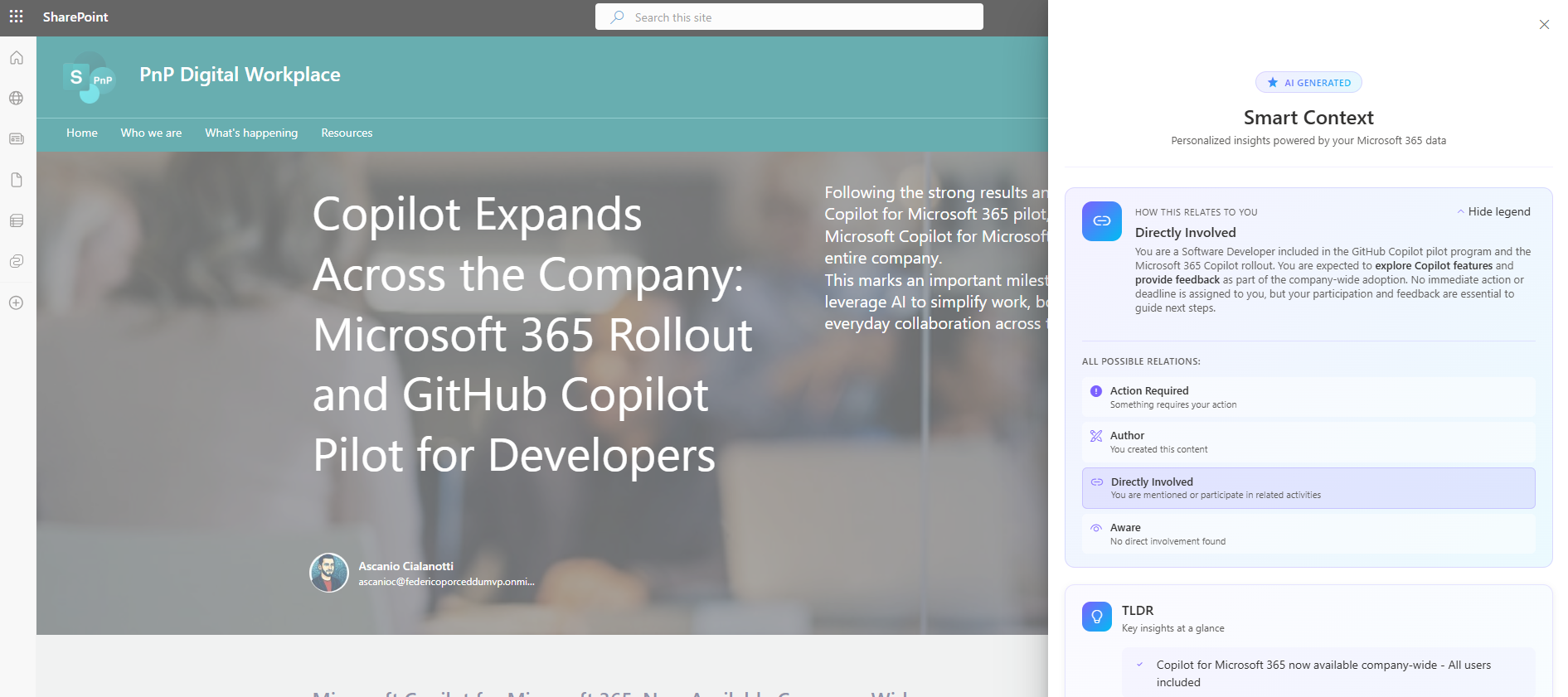
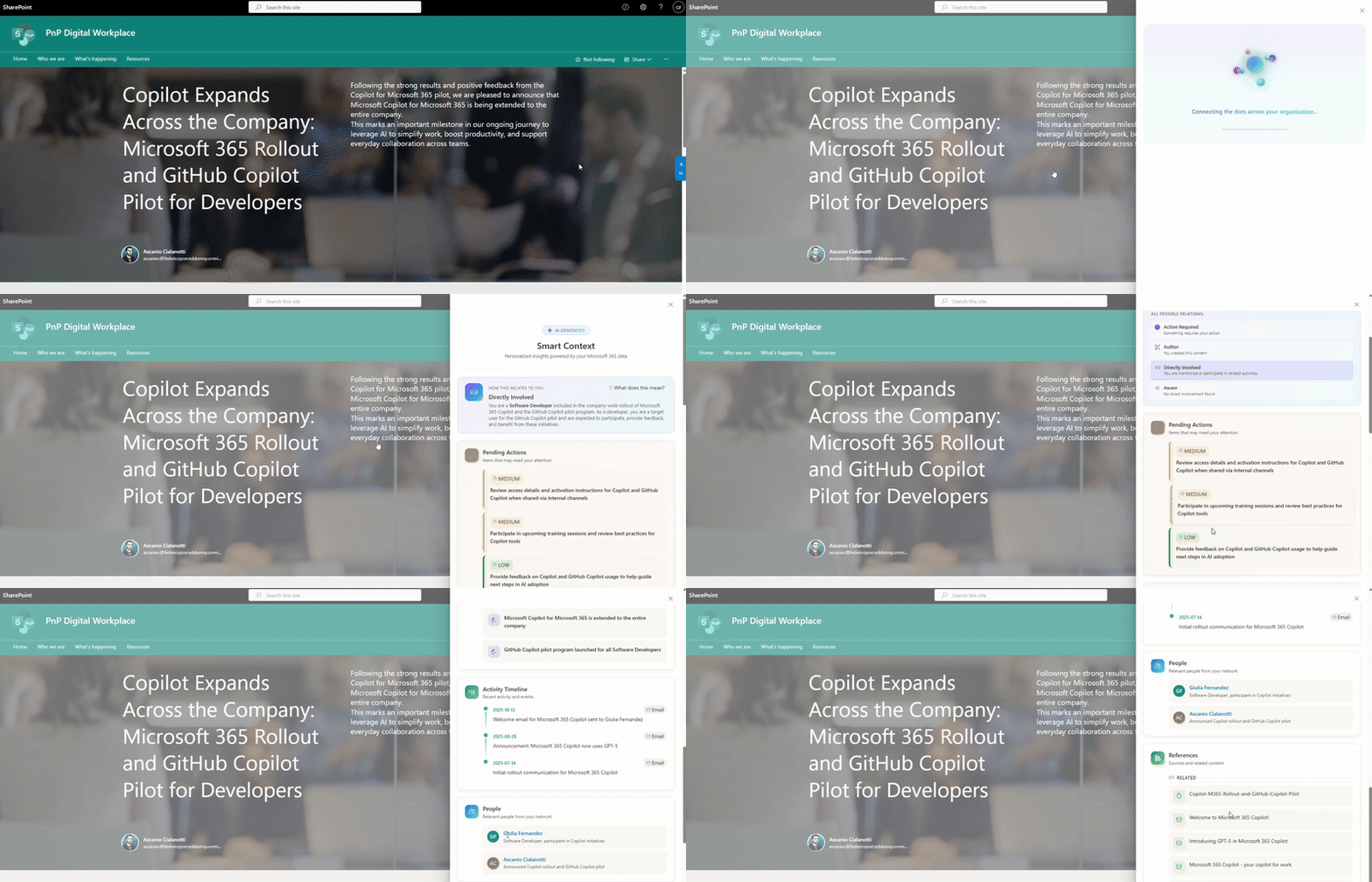
Smart Context adds a floating side panel to any SharePoint page. When you click it, the app calls the Chat API with the current page URL as context and asks Copilot to analyze how the page relates to you specifically, based on your emails, chats, meetings, and files.
The “magic” is in the prompt engineering: instead of asking for free-form text, the prompt instructs Copilot to return a specific JSON schema. This makes the response predictable and allows me to render a polished, structured UI.
The Generated Sections
The panel displays personalized insights organized in sections:
| Section | Description |
|---|---|
| My Role | How this page relates to you (Author, Directly Involved, Aware, etc.) |
| Pending Actions | Items that may need your attention |
| TLDR | Key insights at a glance |
| Key Decisions | Important decisions mentioned in the content |
| Activity Timeline | Recent activity and events |
| People | Relevant people from your network |
| References | Sources and related content with citations |
The Architecture in a Nutshell
The flow is surprisingly simple:
- User clicks the floating “SC” button
- The app creates a Copilot conversation via
POST /beta/copilot/conversations - Sends the structured prompt with the page URL as
contextualResources - Copilot returns JSON data (not free text!)
- The app parses the JSON and renders the UI
The key insight here is prompt engineering for structured output. By carefully crafting the prompt to require a specific JSON schema, I can build a predictable UI on top of unpredictable AI capabilities. The full prompt is in the architecture documentation.
💬 A note on the JSON approach: I understand that instructing Copilot to return raw JSON may not be the optimal pattern. This was an experiment, and based on my tests I’m satisfied with the results. I’d love to hear feedback from the community on this approach!
Why This Matters
This sample demonstrates that the Chat API isn’t just for building chatbots. You can use it to build any AI-powered feature that needs to reason over Microsoft 365 content:
- Contextual recommendations
- Smart summarization
- Personalized insights
- Intelligent dashboards
Check out the full source code on GitHub and let me know what you think!
This is Part of a Series
This is the second post in my series about Microsoft 365 Copilot APIs:
- 01 - Getting Started - Overview of all available APIs
- 02 - Deep Dive into the Chat API (this post)
- 03 - Building Search Experiences with the Search API - Hybrid semantic and lexical search
- Coming Soon - Exporting Copilot Interactions for Compliance
- Coming Soon - SPFx Web Parts powered by Copilot APIs
Useful Resources
- Chat API Overview
- copilotConversation Resource Type
- Create Copilot Conversations
- Continue Synchronous Conversations
- Continue Streamed Conversations
Wrapping Up
The Chat API is a powerful tool that brings Microsoft 365 Copilot’s conversational capabilities to your custom applications. What I love most about it is that it handles all the complexity of grounding, permissions, and compliance for you, you just send prompts and get intelligent, contextual responses.
I can already see so many scenarios where this will be useful: custom dashboards with AI assistance, specialized internal tools that answer questions based on company documentation, intelligent forms that guide users through complex processes… the possibilities are endless!
In the next posts, we’ll explore the Search API for building AI-powered search experiences and the Interaction Export API for compliance scenarios. Stay tuned!
What are you planning to build with the Chat API? Let me know in the comments!
See you soon! 🚀
Federico
Content Creation Note: Portions of this post were prepared with assistance from AI tools including Copilot for M365 and GitHub Copilot, to streamline the writing process. All content has been reviewed and edited to ensure accuracy and quality.